
Skylight adds a schedule for its photo screensaver
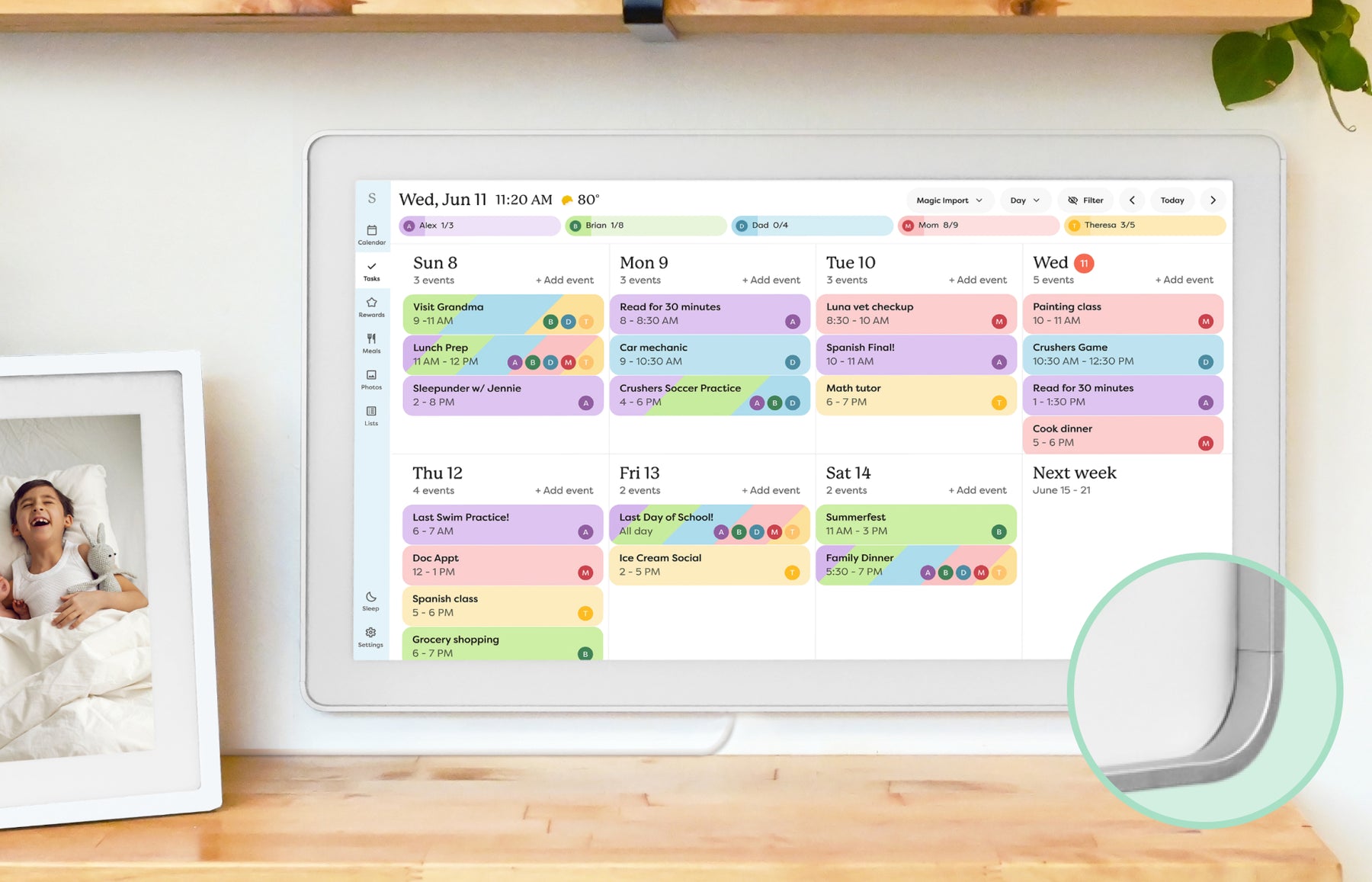
The October 13 Calendar update adds weekday and weekend time blocks for keeping the schedule visible. It requires Plus and is separate from Sleep Mode.
On this page
Why it matters
A photo screensaver can hide the schedule just when the household needs a quick glance. Skylight now documents time blocks that keep the calendar visible, with separate weekday and weekend settings. This controls when photos take over; it should not be confused with turning the screen off at night.
Announcement or event date: .
What the October 13 release adds
Skylight’s October 13, 2026 release note introduces Screensaver Schedule for Calendar Plus subscribers. It describes multiple time blocks when the screensaver will not enable, separate weekday and weekend schedules, and manual control. The useful change is control over visibility: a family can preserve a calendar view during recurring busy periods without giving up photo display for the rest of the day. The release note does not identify a minimum software version or establish that every device has received the feature.
- This is a documented software feature, not a newly released Calendar model.
- Calendar Plus is required for the screensaver feature. Basic calendar access and core included features are a separate question.
Sources: Skylight: Schedule Your Calendar Screensaver · Skylight: included and paid features
Set the hours when you want to see the calendar
The Photo Settings guide places the controls under Settings → Photos → Screensaver Schedule. Choose Weekdays or Weekends and add a From/Until entry for the period when the calendar should remain visible. The documented entries are calendar-visible periods, not appointments and not the hours when photos are required to run. A manually started screensaver can override a scheduled block. These instructions come from the support guide; this report has not operated the controls on a physical unit.
- Example, not a tested preset: a household might keep its calendar visible during its school-morning departure period and its evening planning period.
- Choose times that match your routine rather than copying someone else’s schedule. Save the selected weekday and weekend entries and check the result on your own device.
Sources: Skylight: Photo Settings
Screensaver Schedule and Sleep Mode solve different problems
Screensaver scheduling decides when photos should yield to the calendar. Sleep Mode turns the display off during scheduled intervals and lets you wake it with a tap. A request for a dark kitchen overnight is therefore different from wanting the calendar visible while making breakfast. The new weekday/weekend screensaver controls do not establish identical weekday/weekend options for Sleep Mode, and the Calendar release should not be read as a feature promise for Skylight Buddy.
- Need the screen dark? Use the current Sleep Mode instructions for the exact device.
- Need photos out of the way during a busy period? Check the new Calendar screensaver controls.
Sources: Skylight: Schedule Your Calendar Screensaver · Skylight: Sleep Mode
Photo alerts are another separate control
A second October 13 release note introduces notifications when invited family or friends add a photo. Photo Settings documents a switch for those new-photo notifications. Separately, Skylight’s August 27 release already described weather and upcoming events on the photo screensaver. Keeping a small event overlay visible, receiving a new-photo alert and preserving the main calendar view are three different behaviors; enabling one should not be assumed to configure the others.
- Compare the notification setting with how often photos arrive and who uses the shared screen. A setting that suits a photo-focused household can interrupt a calendar-focused one.
Sources: Skylight: New Photo Notifications · Skylight: Weather and Events on Screensaver · Skylight: Photo Settings
Who benefits, and what the update does not establish
This update is most relevant to a household that already wants Calendar Plus photos but needs its schedule visible at predictable times. Someone using only the included calendar may not need a paid screensaver at all. The documented controls do not prove faster external-calendar sync, a remedy for unrelated connectivity reports or a change to the price of Plus. Evaluate the subscription against the actions you use, and keep those buying questions separate from the announcement of a new setting.
- If the setting is absent, check the current instructions and device software with Skylight support. Do not infer a universal rollout state from this report.
Sources and evidence
Sources checked . Skylight release notes and settings documentation checked October 18, 2026. This report describes documented Calendar behavior; it is not a hands-on test or a guarantee of availability on every account and device.
- Skylight: Schedule Your Calendar Screensaver — Release listed October 13, 2026: multiple blocks, separate weekdays/weekends, manual control and Plus requirement.
- Skylight: Photo Settings — Updated October 13; documents calendar-visible blocks, manual override and photo notification controls.
- Skylight: Sleep Mode — Scheduled display-off and tap-to-wake instructions; a different feature from photo screensaver scheduling.
- Skylight: New Photo Notifications — October 13 release describes new-photo alerts from invited family and friends.
- Skylight: Weather and Events on Screensaver — Listed August 27, 2026; photo-screen overlays are not new in the October scheduling release.
- Skylight: included and paid features — Basic calendars and chores versus Plus features; checked October 18.