
On this page
What should you buy for the kitchen?
- Best for a shared kitchen calendar: start with Skylight Calendar 2. Add a speaker only if hands-free timers or questions are useful; ordinary calendar use does not need Calendar Plus.
- Best value when you already own Echo or Nest: try its current calendar and cooking workflow before replacing it. A second voice screen is usually unnecessary if the missing feature is a visible family schedule.
- Best combination: a dedicated calendar plus your existing compatible speaker, connected separately to the same supported calendar. This is a proposed setup, not a direct Skylight-to-Alexa or Skylight-to-Nest integration.
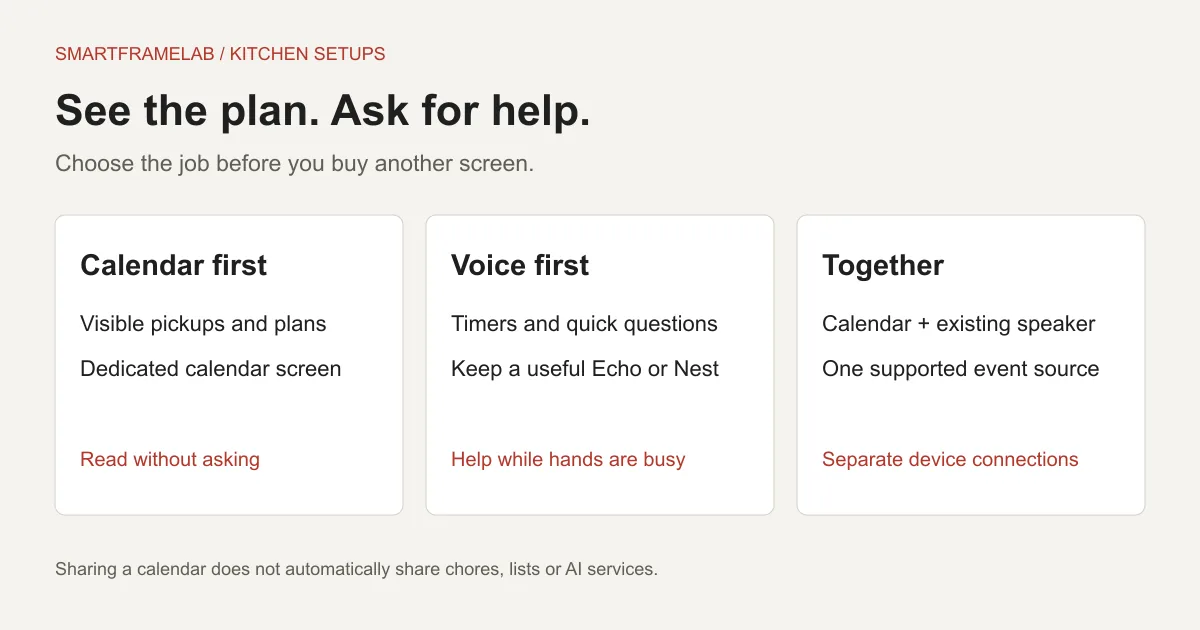
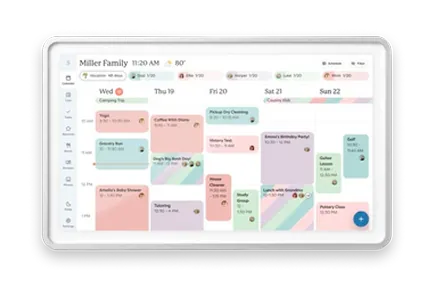
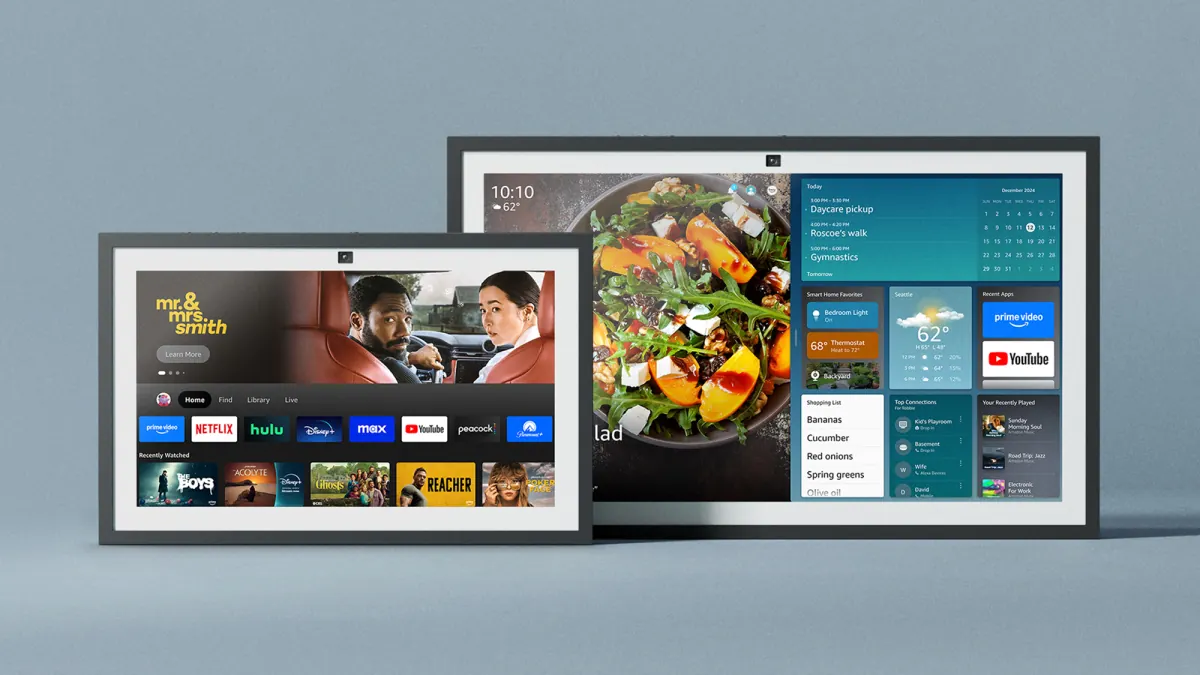
Which setup fits your kitchen?
The right shortlist depends on what goes wrong during a normal morning. If family members miss pickup plans, make the schedule easier to see. If the problem is operating a screen with flour-covered hands, voice controls may help. Neither problem is solved simply by buying a larger screen.
| Kitchen need | Our starting choice | Main compromise | Sources |
|---|---|---|---|
| Everyone needs to see today’s pickups | Skylight Calendar 2, with an existing speaker if wanted | Another powered device; paid extras are separate | Skylight Calendar 2Calendar Plus |
| Timers, music and occasional schedule questions | Keep a working Echo Show or Nest Hub first | The calendar may compete with other screen content | Link calendars to AlexaGoogle Home calendar support |
| A new premium Alexa display, with time to wait | Consider Echo Show 16 only if preorder timing suits you | Preorder, not a verified in-stock kitchen purchase | Echo Show 16 launch and preorder |
| Google household already using Nest Hub | Keep it if its current functions meet the need | Old cookbook features are not a buying reason | Google Assistant feature changesGoogle Home calendar support |
These are use-case choices, not new overall product scores or a claim that the devices were tested side by side.
Calendar-first: buy the screen for the family schedule
Skylight Calendar 2 is our starting point when the shared schedule is the reason for buying. Its dedicated calendar and companion-app workflow suits a kitchen wall or counter where several people need the day at a glance. Our Skylight review covers the generation and provider-specific sync differences.
- Choose the smallest view that still answers the daily question: who is going where, when and with whom? A crowded month grid can be less useful than a legible day or week.
- Core calendars, tasks and lists are the baseline. Meal planning, rewards, import tools and personal photo/video screensaver belong in the separate Plus decision.
- Choose a placement both the shortest regular user and the person preparing food can reach safely. A beautiful wall position is less helpful if editing an event requires leaning over the hob.
Sources: Skylight Calendar 2Calendar Plus
Voice-first: keep a useful Echo or Nest before adding hardware
If an existing speaker already handles the questions you ask while cooking, keep it and put the display budget toward the missing view. Existing Echo Show 15 or 21 owners can compare their calendar and entertainment setup in our Echo Hub versus Echo Show guide. Echo Hub is a close-up control panel, rather than our starting choice for an across-room kitchen schedule.
- For a new premium Alexa purchase, Amazon’s October 28 announcement lists Echo Show 16 at US$499.99 standard or $569.99 Nanomatte, with $100 off preorders and shipping later in the year. That is not a confirmed delivery date for your kitchen.
- The listed compatible stand is $69.99, or $124.99 for swivel and tilt. Compare the installed total and selected offer rather than counting only the screen price.
- A calendar widget and a voice answer do not prove the full family schedule remains visible after music, a video call or a recipe request. Check what the screen returns to after each action.
Sources: Echo Show 16 launch and preorderLink calendars to Alexa
Nest Hub: useful existing hardware, but beware old recipe claims
Do not buy a Nest Hub because an older review promises a saved cookbook or guided step-by-step recipes. Google lists those Assistant features as removed, while web and YouTube recipe search remain alternatives. A video search is a different cooking experience from a recipe that advances hands-free through each step.
- For calendars, Google documents main, shared and family Google calendars, but excludes Workspace calendars and URL/iCal imports. A school feed visible in the phone app may therefore be unavailable to the speaker.
- Personal results and each user’s Voice Match settings matter. Check whose events are returned before treating one person’s successful request as a family-wide setup.
- Google’s current help also limits voice event editing: changes such as cancelling or modifying an event require the calendar app or desktop. Do not assume a conversational assistant has complete write-back.
Sources: Google Assistant feature changesGoogle Home calendar support
Two devices: one calendar, two ways to use it
A calendar screen can stay focused on “what is happening?” while a speaker handles “set a pasta timer.” The useful connection is the calendar account. The devices need compatible access independently; buying both does not connect their chores, shopping lists, reminders or AI services.
- Create a separate shared family calendar for pickups and household plans. Keep private work or medical details out of the kitchen view.
- Connect the screen first. Then use the Alexa or Google Home app to add that same calendar where supported, with the correct permissions. For an iCloud family, check the assistant’s actual provider options rather than assuming the Google route applies.
- Pick one default destination for voice-created events. After adding a harmless test event, find it in the original phone calendar and on the display. Edit it on the phone and check again.
- Keep chores and shopping lists in the service the household will actually open. Matching event feeds does not establish cross-device list or task sync.
Sources: Link calendars to AlexaGoogle Home calendar support
Subscription boundaries and the three-year bill
Budget the delivered hardware, any stand or mounting equipment, and only the services you need. A photo screensaver, an AI conversation and a family calendar connection are different purchases.
| Service | What changes the bill | Three-year example | Sources |
|---|---|---|---|
| Skylight Calendar Plus | US$79/year; optional imports, meals, rewards and personal photo/video screensaver | $237 for three complete paid years | Calendar Plus |
| Alexa+ without Prime | US$19.99/month for the US service | $719.64 for 36 paid months | Alexa+ US price and Prime inclusion |
| Alexa+ with existing eligible Prime | No additional Alexa+ fee under current US terms | No extra Alexa+ charge; Prime itself is not free | Alexa+ US price and Prime inclusion |
| Gemini for Home | Basic voice features and paid Home Premium features differ | Use the price shown for your region and eligible device | Gemini for Home features and availability |
Calculations exclude hardware, tax, delivery, other services, trials, discounts and future price changes. For example, adding Plus to a calendar is a separate bill from paying for Alexa+.
Region, photos and privacy can change the answer
Check the actual household account, language and device before buying an AI feature. Google describes Gemini for Home early access by country and language, and separates basic functions from paid capabilities. Eligibility is more specific than an “AI-ready” badge.
- Keep the photo job separate: a dedicated calendar’s personal screensaver can require a plan, while Echo and Nest have their own photo services and permissions. None of those labels establishes color accuracy or print-like picture quality.
- Preview both a portrait and a landscape family image at the intended viewing position. Check crop, reflections and whether the photo mode hides a schedule people need to see.
- Voice recognition is not a privacy lock for a shared room. Check proactive personal results and physical microphone or camera controls. Decide what a guest or child should be able to see or hear.
Sources: Gemini for Home features and availabilityGoogle Home calendar supportCalendar Plus
A practical kitchen check before the return window closes
Use ordinary tasks in the actual room. Record what happens instead of relying on the product’s demonstration. These are checks to perform on your own setup; they are not SmartFrameLab hardware measurements.
- From the chair and doorway, read the next pickup and its assigned person without walking up to the screen. If you cannot, simplify the view or reconsider the position.
- With an extractor fan running normally, ask for two named timers. Confirm you can identify and stop the right one without touching a wet screen.
- Open a recipe or video, then leave it. Check whether the useful calendar view returns on its own and whether promotional or suggested content gets in the way.
- On a supported shared calendar, create an event from the intended voice account, change it on the phone, and confirm the final time and calendar name on both devices.
- Place mains-powered equipment on a dry, stable surface away from sink splashes and cooking heat, with a clear cable path. None of the options here is presented as a battery-powered or splashproof cooking appliance.
Our verdict
- For a family schedule that must be visible, buy the dedicated calendar first. Skylight Calendar 2 is the starting choice here; compare alternatives if you want a different software or subscription model.
- For cooking questions and entertainment, first use the Echo or Nest you already own. Do not replace a working device merely to get another calendar widget.
- Buy both only when the household will use both roles, and prove the shared-calendar route during setup. Wait rather than treating an announced premium display as immediately available.
For more calendar-first options, compare family calendar displays.
Common questions
What is the best kitchen display for a family calendar?
Start with a dedicated calendar such as Skylight Calendar 2 when visible shared plans are the main purpose. Keep an existing voice speaker for timers and questions. Choose a voice display first when entertainment and spoken help matter more than a persistent schedule.
Do Skylight and Alexa automatically sync with each other?
This guide does not describe a direct integration between them. Connect each device separately to a supported shared calendar. Lists, chores, reminders and paid services do not become shared just because calendar events appear on both.
Is a Nest Hub still a good recipe display?
An existing Nest Hub may still be useful, but Google removed Assistant cookbook, recipe-transfer and step-by-step recipe features. Evaluate the current recipe-search or video workflow rather than buying on an older review.
Does a kitchen calendar need a subscription?
Skylight’s core calendars, tasks and lists are included; Plus adds other features such as meal planning and personal photo/video screensaver. Alexa+ and Google Home Premium have separate terms. Budget the services you intend to use.
Sources
- Manufacturer instructions and plans checked November 2, 2026. Cost examples are calculations; physical kitchen visibility, microphone performance and account connections were not measured by SmartFrameLab.
Related reading
Check the calendar connection and ongoing costs
Follow the setup that matches your household account.
Choose and set up the kitchen screen
- Google Calendar Dashboard Wall Display GuideBuild the screen view first: compare Google Calendar dashboard templates and real home examples, then choose wall-display hardware.
- Smart Frame Subscription Costs ExplainedHow to compare free features, paid plans, AI extras, and ongoing household value before choosing a smart frame.
- Smart Calendar Frame vs Echo ShowHow to compare a dedicated smart calendar frame with an Echo Show-style voice display before a kitchen helper gets mistaken for a true family calendar wall.