
Smart Calendar Frame Setup Checklist
A practical first-week setup checklist for smart calendar frames, family displays, and wall dashboards that helps households verify fit, sync, and daily maintenance before the install becomes permanent.
On this page
Quick answer
- Set up the calendar workflow before adding photos, widgets, AI features, or extra family tools.
- The first week should prove visibility, calendar sync, account ownership, and daily maintenance.
- A good setup ends with one clear owner, one visible household view, and a recovery plan if sync breaks.
Before mounting your display, connect one shared calendar and create a harmless test event. Check that a time change and cancellation reach the screen, confirm where edits belong, and test readability in the intended room. Add other calendars and extras only after that basic path works.
Who this suits: Families setting up Skylight, Cozyla, Hearth, DAKboard, Dragon Touch, Apolosign, Aluratek, Westsee, or another shared calendar display for the first time.
Before you open the box
The setup should start before mounting or account login. The main decision is where the family will actually look for schedule answers.
- Choose the room first: kitchen, entryway, hallway, desk, or family command wall.
- Measure viewing distance before deciding whether the screen is large enough.
- Decide whether the display is wall-mounted, counter-based, or temporary during the first week.
- Confirm return policy before drilling holes or committing to a permanent mount.
- Check the exact model manual for Wi-Fi requirements, power supply, ventilation, and approved mounting hardware; test the connection in the intended room.
- Keep the display on a stable, manufacturer-supported stand during the trial and route the power cable away from walkways.
Calendar connection checklist
Calendar support is not finished when the first account connects. The household should verify the actual events and calendars that drive daily planning.
- Connect the main family calendar first, then add school, sports, work, custody, caregiving, or activity calendars one at a time.
- Check recurring events, all-day events, invitations, edits, cancellations, and event colors.
- Verify whether Google Calendar, Apple Calendar, Outlook, Cozi, or other providers use direct sync, app import, ICS feed, or dashboard integration.
- Name the adult who will own account recovery, password changes, and calendar cleanup.
Run a create, edit, and cancel test
Use a harmless event named Setup test in the source calendar. Use these steps during your own display setup.
- Create the event for tomorrow and confirm the correct date, time zone, calendar name, and household member on the display.
- Change its time in the source calendar, then cancel the test event. Check that both changes appear after the documented refresh interval for your connection and plan.
- If on-screen editing is supported, create a second test on the display and verify that it reaches the intended source calendar. Otherwise, keep edits in the source calendar.
- Test an all-day event and one occurrence of a recurring series before relying on school or pickup schedules.
- If an event appears twice, check whether the same calendar was added through both an account connection and a feed before changing real events.
Check privacy and access before adding work calendars
A wall display makes event details visible to anyone in the room. Choose which calendars and details belong there before connecting sensitive schedules.
- Use the provider-supported sharing or sign-in method and check whether each person needs viewing or editing access.
- Keep Google Calendar secret iCal addresses out of screenshots, messages, and public pages. Google provides a Reset option if one is exposed.
- If a work or school calendar cannot be shared, check with its administrator instead of making it public to bypass the restriction.
- Review titles, locations, and guest details from the usual viewing position; use a separate household calendar when private details should stay on a phone.
If an update does not reach the screen
Start with the source event and work toward the display. Calendar data refresh and screen-layout refresh may follow different schedules; DAKboard documents them separately.
- Confirm that the event exists in the intended source calendar and that this calendar is selected for display.
- Check the display network connection, account authorization, time zone, and any error message.
- Look up the refresh interval for the exact integration and plan before repeatedly reconnecting; an iCal feed should not be assumed to update instantly.
- Follow the manufacturer instructions for restarting or reauthorizing, then repeat the harmless event test. Save the error and test time for support, without including passwords or private feed URLs.
- Keep the source calendar on a phone available for urgent changes while troubleshooting the display.
First-week household test
A display earns its place by changing behavior during a normal week. Test it when the household is busy, not only during setup.
- Before the week starts, place school, work, pickups, and appointments in the source calendars one at a time; keep one adult responsible for correcting duplicates and cancellations.
- Use the display for morning departures, pickup changes, dinner planning, and weekend schedule checks.
- Try a short morning check for today’s timing and owners, then an evening check for tomorrow’s clothes, food, and changed plans.
- Put only a few recurring chores and grocery items beside the calendar at first; confirm who edits and clears each one.
- Ask whether family members look at the display without being reminded.
- Remove widgets or views that make the main calendar harder to read.
- Write down the first three confusing moments, then decide whether the source calendar, room placement, or routine needs simplifying.
Paid features and account boundaries
Many smart frames become harder to compare after the first setup because premium features, AI helpers, extra integrations, or storage limits may appear later.
- Check which calendar, chore, list, meal, photo, AI, or dashboard features are free versus paid.
- Confirm whether the core family calendar still works if the paid plan is canceled.
- Check any required setup membership, trial end date, and renewal terms before activation; delay optional upgrades until the included calendar workflow is useful.
- Save support links, warranty terms, and cancellation notes while the setup is still fresh.
Sources
Buying checklist
Software & devices
Follow the app behind the display
Explore the software for app workflows, and the device profile for its screen, setup and buying details.

Zicalstar connects family calendars, chores, meals and photos through its Zical companion app. Documented displays include Westsee, Boyuevi, Acpouw and Bozztek calendar models.
Devices discussed in this article
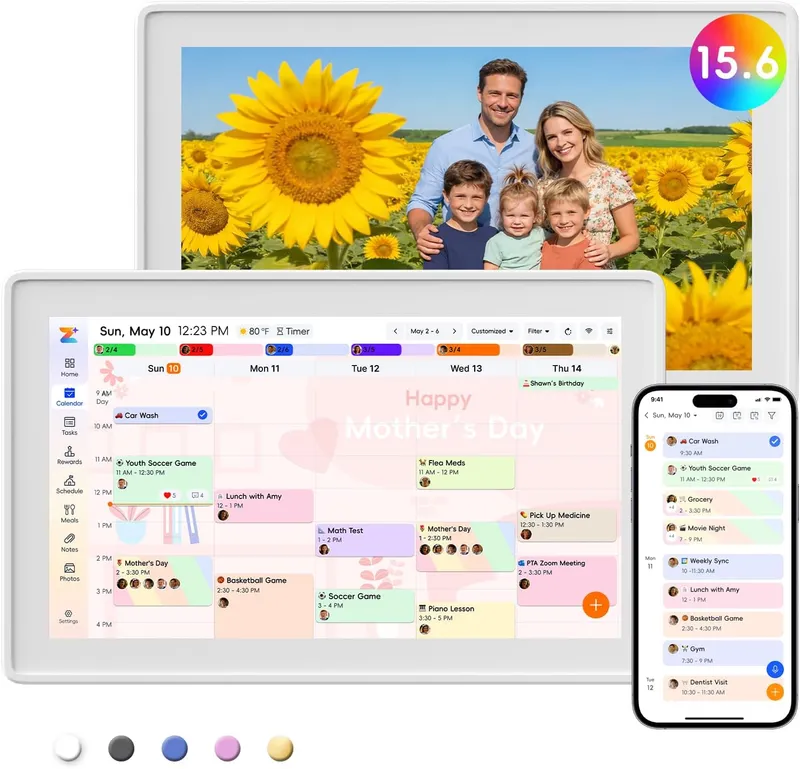 Westsee 15.6-inch Digital Calendar (X200)
eCalendar connects family schedules, chores, meals and photos across multiple display brands. Explore representative calendars from Dragon Touch, Aluratek, BSIMB, Anko, TABWEE and other makers below.
Explore eCalendar software & connected devicesProducts to compare
Open the linked profile for exact-model evidence. On a small screen, scroll the comparison sideways; with a keyboard, focus the table and use the arrow keys.
| Product | Role | Best for | Source status |
|---|---|---|---|
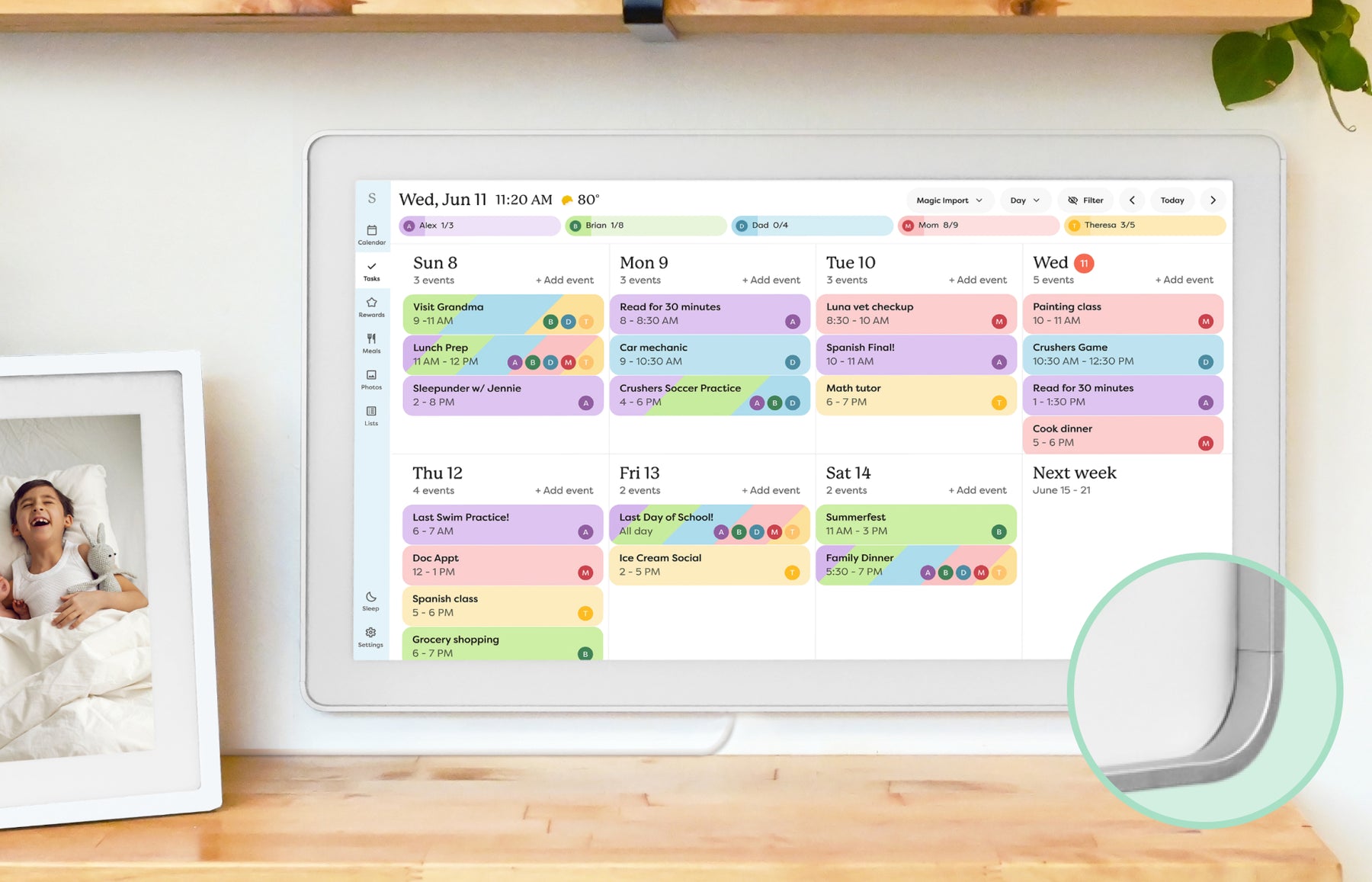 | Smart calendar frame | Families who want a polished shared calendar with broad mainstream support and do not want to run a DIY dashboard. | Official sources · checked October 20, 2026 |
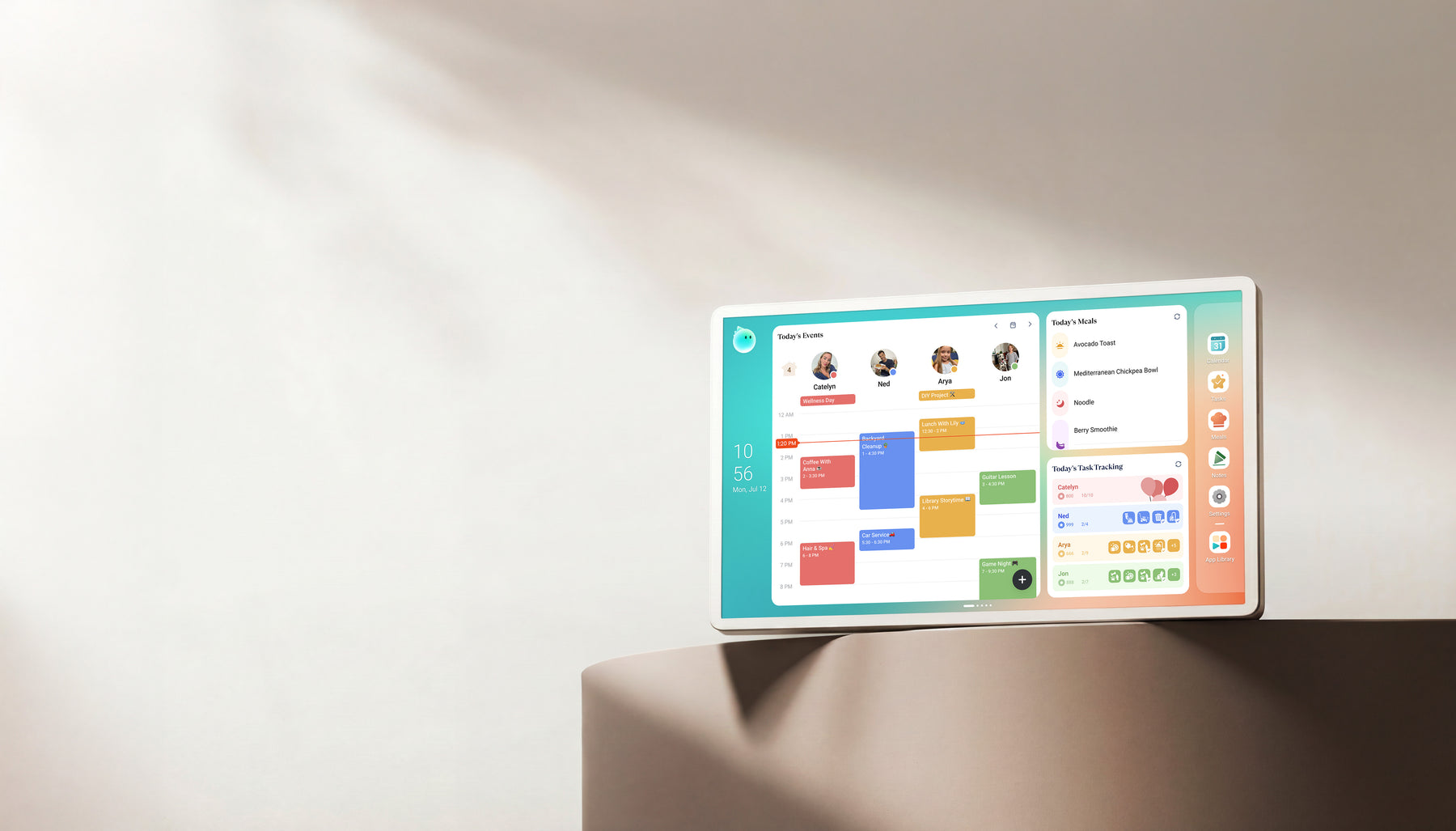 | Family display | Homes comparing Skylight alternatives with calendar, photo, and family-display needs. | Official + retailer sources · checked August 29, 2026 |
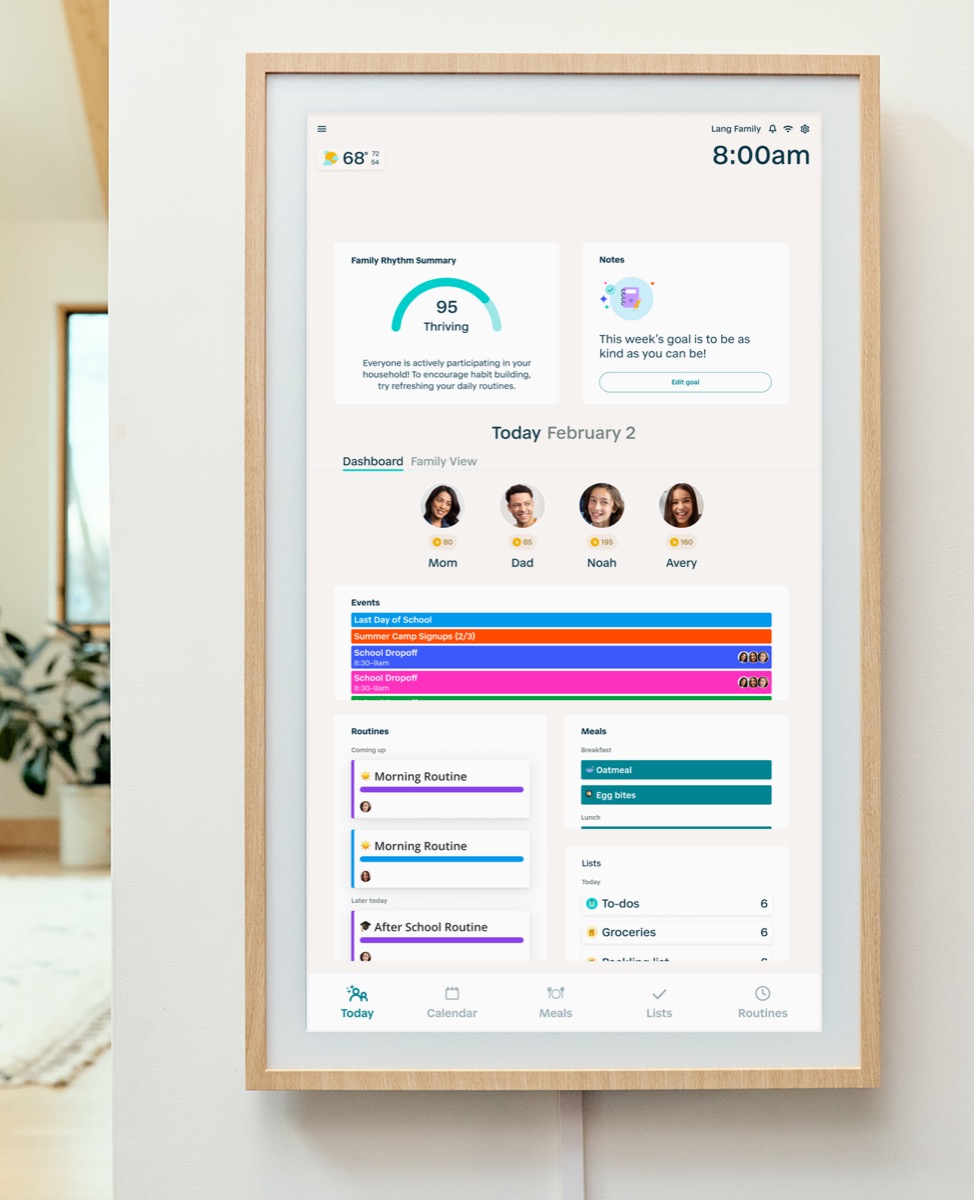 | Family command display | Families that want routine management and a command-center style home display. | Official sources · checked September 14, 2026 |
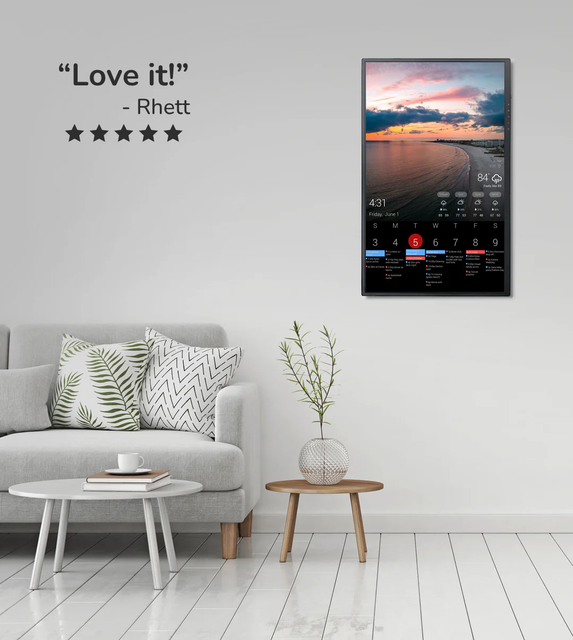 | Custom dashboard display | Homes that want a configurable dashboard for calendars, photos, weather, chores, or mixed household information on one screen. | Official sources · checked August 29, 2026 |
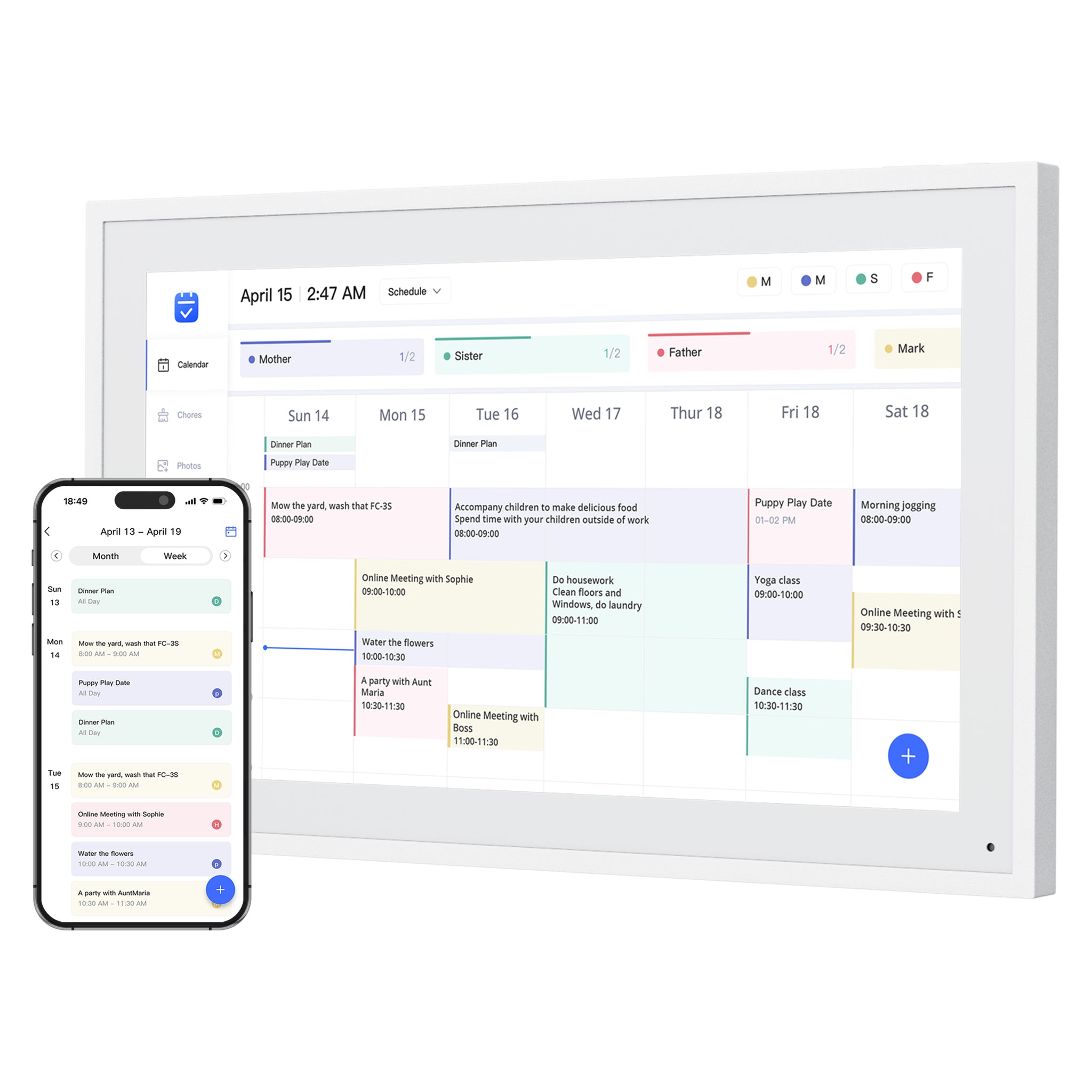 | Smart WiFi digital calendar Software: eCalendar | Families comparing lower-cost, no-subscription-positioned digital calendar frames with broad calendar sync. | Official sources · checked August 29, 2026 |
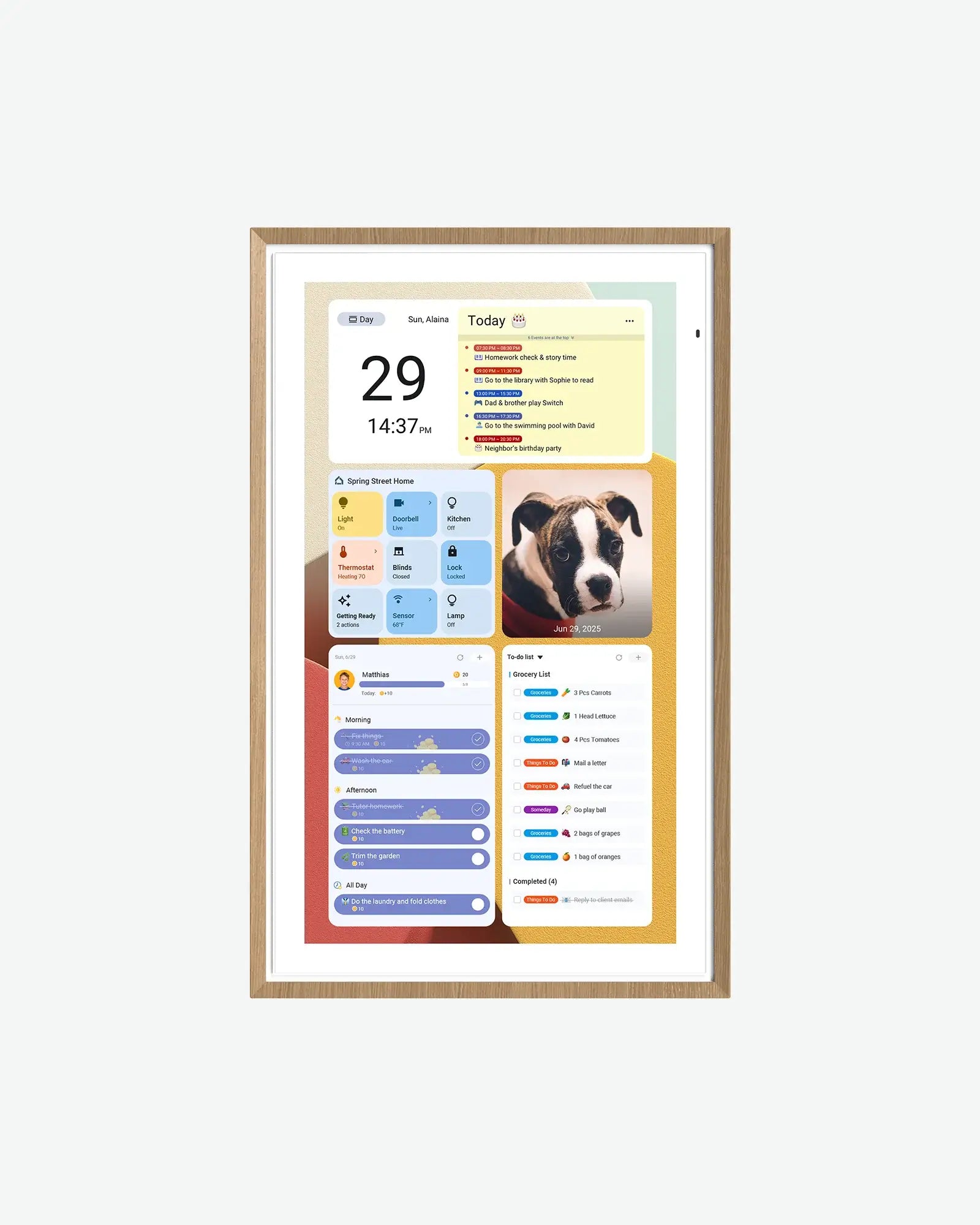 | Android digital calendar | Families who want a spec-transparent Android/Google ecosystem calendar display with multiple sizes and no-subscription positioning. | Official sources · checked September 21, 2026 |
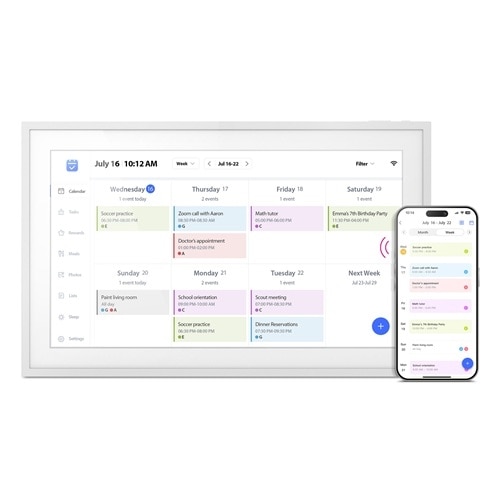 | Smart WiFi digital calendar and photo frame Software: eCalendar | Families who want calendars, chores and photos together on a 15.6-inch eCalendar display. | Official sources · checked August 29, 2026 |
| | Smart calendar and photo frame Software: Zicalstar / Zical app | Families wanting a 15.6-inch calendar, chores, meals and photo display using the Zicalstar software platform and Zical companion app. | Official + retailer sources · checked October 21, 2026 |
Representative product-family images; sizes are not shown to scale. Linked profiles distinguish their exact model and evidence. Skylight imagery shows the earlier Calendar, not Calendar 2. The Cozyla profile and image cover Calendar+ 2, not Plus 3 or Neo.
Common questions
How long does it take to set up a smart calendar frame?
Allow time for account access, updates, and a calendar sync test; setup time varies by device and provider. Then use the first week as a trial for shared calendars, room placement, and household routines rather than treating it as a guaranteed installation time.
What should I set up first on a family calendar display?
Set up the main shared calendar first. Add chores, routines, photos, widgets, AI helpers, or meal planning only after the core calendar is readable and updating correctly.
Should I wall mount a smart calendar frame right away?
Usually no. Test the display in the intended room for several days before permanent mounting so you can confirm viewing distance, glare, power routing, and daily use.
Which setup mistakes should I check for?
Check for mounting the display where nobody looks, connecting too many calendars at once, ignoring event colors or recurring events, and paying for advanced features before the basic calendar habit works.
Related reading
Compare the options that fit your needs.
Read the relevant product reviews, side-by-side comparisons and selection guides.
Put the display to work this week
- Choose the household workflowDecide whether the family needs schedule visibility, task ownership, or a configurable information wall.
- Test recurring choresGive tasks owners and check how the routine resets during a normal week.
- Connect meals and groceriesPlan dinners around real events and test a changed meal across phone and wall.
Setup sequence
- Family display setup mistakesUse this when the display is already mounted or configured but the household is not using it.
- Google Calendar wall display setupPlan the dashboard, provider connection, shared calendars, colors, and recurring events before choosing hardware.
- Apple Calendar family display setupCheck iCloud, iCal, shared-calendar, color, recurring-event, and account ownership details.
- Smart frame subscription costsVerify which setup features are free, paid, optional, or unavailable after the first week.
Products to set up carefully
- Skylight Calendar ReviewUse as the mainstream appliance-like calendar-frame setup reference.
- Hearth Display ReviewUse when routines, chores, ownership, and command-center setup matter as much as calendar visibility.
- DAKboard ReviewUse when the family wants dashboard control and accepts more ongoing layout maintenance.
- Dragon Touch Digital Calendar ReviewUse when no-subscription value and screen-size options need extra setup verification.