
On this page
Quick answer
- Choose Calendar 2 when a child or caregiver needs to check pickups and complete chores at the screen. The basic shared calendar and task tools work without Calendar Plus.
- Choose HomeView when photos, FaceTime, Apple Home controls and personal Siri requests are the main reasons for buying. Access to personal calendar content depends on the enrolled person and their paired device.
- Apple lists November 13 availability in eight markets. A launch date does not guarantee delivery to your address. The wall model also needs mounting and power accessories.
Who can see the plan when you leave?
Picture a parent heading to work while a child and grandparent get ready for school. They need to know who is collecting the child at 3:30. A family display succeeds when those people can read the answer without the parent coming back to unlock a device.
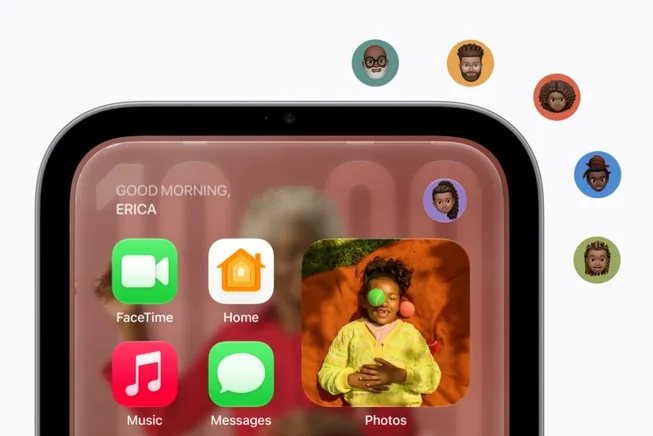
- HomeView recognizes up to six enrolled people. Apple normally requires the recognized user’s paired iPhone or iPad on the same Wi-Fi network and recently unlocked before showing personal content such as Calendar. Each person gets their own experience. Enrollment alone does not establish that a child can see a parent’s events.
- Apple allows a narrow exception after a paired device disconnects from Wi-Fi. Personal information may remain accessible if the recognized user is still present and the device was recently on that network, has cellular connectivity, stays in the same location and was recently unlocked. This is poor grounds for assuming access will continue after a parent leaves with the phone.
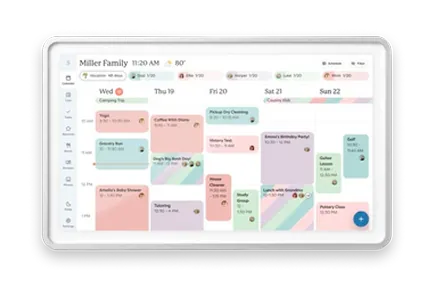
- Skylight puts shared events on the calendar display. A child can consult the screen while the adult manages changes remotely. Consider which private appointments you want visible before connecting a work calendar to a shared wall.
Calendar, reminders and an actual chore chart
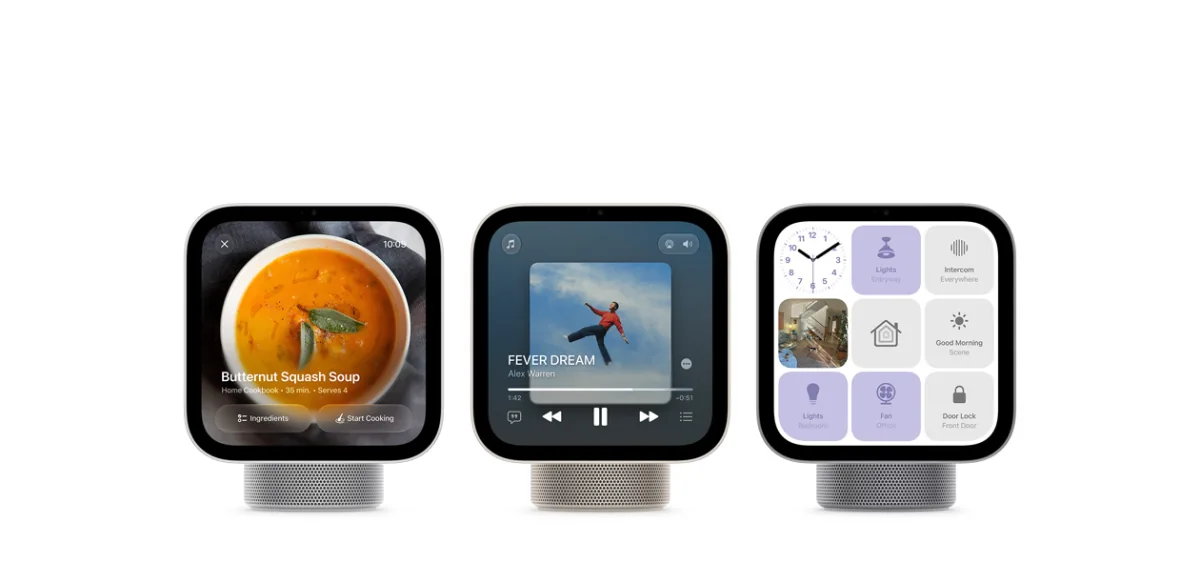
HomeView has a built-in Calendar app as well as customizable faces and widgets. It also includes Reminders. Those are useful tools for an adult checking an appointment or asking Siri to add a reminder. Apple’s published feature list does not document a Skylight-style chart with columns for children, recurring routines and reward stars.
- Skylight documents assigning a chore to one or more profiles, repeating it and checking it off on the display or mobile app. Its Tasks view can show family members in separate columns. Rewards are part of Plus.
- For breakfast, homework and bedtime, compare whether a child can find the task, mark it done and see the next occurrence. A reminder spoken to one adult does not demonstrate that household workflow.
- A recipe answer from Siri can help while cooking. A week of meals attached to the family plan is a separate need. Skylight’s meal-planning tools require Plus.
| Buying question | Apple HomeView | Skylight Calendar 2 | Sources |
|---|---|---|---|
| Who sees calendar content? | Personal access follows recognition and paired-device conditions. | Shared events displayed through the household calendar. | Apple HomeView product and access requirementsSkylight Calendar 2 and current bundle |
| Can children check off recurring chores? | Reminders included. A dedicated multi-child chore chart is not documented. | Tasks can be assigned by profile and checked off at the screen. | Apple HomeView specificationsSkylight recurring tasks and profiles |
| What needs a subscription? | Some services and camera features. Future expanded AI access will carry a fee. | Plus adds photos, meal planning, rewards and import tools. | Apple announcement, availability and footnotesCalendar Plus included features and price |
| What is the screen? | 7-inch square, 1088 × 1088. | 15.6-inch landscape, 1920 × 1080. | Apple HomeView specificationsCalendar 2 technical specifications |
These are documented capabilities and requirements. They do not establish recognition reliability or measured sync speed.
Will your existing calendars work?
An event visible in the iPhone Calendar app is a starting point. For HomeView, you still need to establish which events the paired account exposes, who can see them at the display and where a spoken edit is saved. Apple’s HomeView pages do not provide a provider-by-provider read/write matrix comparable to Skylight’s. For an alternative with Outlook write-back, see the Greenlight Family Hub buying guide.
- Skylight documents Google and iCloud two-way sync. Its Outlook, Yahoo, Cozi and URL-feed routes bring events into the display. With an incoming-only connection, edit the original calendar to send a change back to the rest of the family.
- Set up a separate shared family calendar rather than exposing every personal calendar. Try moving one test pickup at the screen and check the time, destination calendar and duplicates on both caregivers’ phones.
- If Outlook write-back is essential, Greenlight documents two-way Outlook support. An Apple household can also use Skylight’s iCloud connection without changing the phones everyone owns.
Seven inches on the counter or fifteen on the wall?
A square screen can make a compact photo and call display, but a week containing four people’s appointments needs space. Using the advertised diagonals and aspect ratios, Calendar 2 has about 4.2 times HomeView’s nominal screen area. That is a geometric comparison, not a measurement of the usable calendar layout.
- HomeView’s 1088 × 1088 resolution describes pixel count. It does not tell you whether a 3 p.m. pickup label is readable from three meters. Apple says selected information adapts as you approach. The calendar view still needs a room-specific legibility check.
- Look from your usual doorway or kitchen worktop at an event with a long title and several overlapping appointments. Test at the distance you actually use, then compare how many events fit after enlarging text. Moving closer for every check can defeat the purpose of a wall calendar.
- HomeView’s 500-to-0.3-nit brightness range and ambient sensor suit changing light. Brightness specifications do not establish glare control near a kitchen window. Both HomeView versions and Calendar 2 require wired power.
What the $299 price leaves out
The tabletop HomeView includes its cable, power adapter and speaker base. It is the simpler starting point if you want to try a counter placement. The wall model has a different installation budget and lacks the tabletop woofer.
- The $59.95 Schneider USB-C mount requires a separate adapter rated at least 20W. HomeView plus that mount therefore starts at $358.95 before the adapter, tax or shipping.
- Apple lists an AC wired mount from $79.95. The screen and mount start at $378.95 before installation. Its $129.95 PoE option is due in early 2027, so it is not the November installation route.
- Skylight’s checked Classic offer is $299.99 with a trial month and then $79/year for Plus. The no-Plus Classic listing is $319.99. Three annual Plus payments add $237, taking the bundle hardware and service total to $536.99 at unchanged prices.
- The biggest variable may be a compatible phone or tablet for each personal experience. Basic HomeView setup requires iOS or iPadOS 27.2 or later. Personal-context Siri requests additionally require an Apple Intelligence-capable paired device with Siri AI enabled. Include any necessary device upgrade in your own total.
Photos, AI and the services you will keep paying for
HomeView can show photo collections and shared albums, make FaceTime calls and control compatible home accessories. Those uses can justify the screen even if a separate display handles school schedules. The tabletop speaker also makes more sense than the wall model when music is a major use.
- Calendar 2’s photo and video screensaver requires Plus. If you want a display mainly for family pictures, weigh the photo library and ongoing fee alongside calendar tools. Neither resolution nor a promotional photograph establishes skin-tone accuracy, cropping quality or night brightness in your room.
- Apple lists Siri AI as English initially, with usage limits for some server-based features and a future fee for expanded access. It has not priced that future allowance. A three-year HomeView AI-service total would therefore be speculative.
- HomeKit Secure Video summaries and search need an eligible iCloud+ plan and compatible setup. Music and video services may have their own subscriptions. A camera feed at the door and cloud recording are different purchases.
- Apple describes recognition processing in Secure Exclaves and Siri requests using on-device processing or Private Cloud Compute. A local recognition mechanism does not make every assistant request an offline function. Calendar 2 has no camera or microphone.
Availability and the first week at home
Apple’s announced November 13 markets are the U.S., UK, Canada, Australia, New Zealand, India, Singapore and South Africa, with South African sales through authorized resellers. Apple says HomeView is unavailable for sale in the EU while Siri AI is unavailable there. Local pricing, language and support are part of the purchase decision.
- For a bilingual family, test the actual scheduling request and saved event. Siri AI launches in English. A translated event title and full voice-assistant support in that language are different capabilities.
- Add each intended user to the shared Home and check their compatible device. For children and visiting caregivers, establish access before replacing an existing calendar.
- From three meters away, read today’s pickup time and the next school event. Repeat with the light from your kitchen window falling on the screen.
- Have two enrolled people approach in turn. Time the switch several times, record failures, and check that personal information disappears when the person leaves.
- With a test calendar, try a locked phone, a phone away from home and a caregiver without an enrolled device. Check what remains visible and whether the family can still find the pickup.
Which should you buy?
- Choose Calendar 2 for a shared kitchen schedule, routine checklists and children who use the wall display independently. Start with its included calendar and task tools, then decide whether Plus earns its annual fee.
- Choose tabletop HomeView if your household wants Apple photos, calls, music and home controls at close range, and the intended users already meet its device requirements.
- For a wall installation, budget the HomeView mount and power separately. For a child or caregiver relying on the calendar after adults leave, establish that access in person before switching.
Common questions
Can HomeView show a family calendar without my iPhone at home?
Apple normally ties personal Calendar access to your recognized face and a recently unlocked paired device on the same Wi-Fi network. Its narrow Wi-Fi-disconnection exception still requires recognition and the device remaining in the same location. That does not establish unattended access to a parent’s calendar after they leave.
Does HomeView need a subscription?
Apple does not list a mandatory hardware subscription. Some media and camera services need paid plans, and Apple says expanded access to certain AI features will carry a future fee. Compatible paired devices are another potential cost.
Is HomeView just a calendar widget?
No. Apple lists a built-in Calendar app as well as customizable faces and widgets. The household decision is whether everyone who needs the plan can access it and complete their tasks.
Related reading
Compare the other options for your kitchen
Reviews and buying guides
- Skylight Calendar reviewCalendar 2 hardware and included versus paid tools.
- Echo Show 16 vs Skylight Calendar 2Compare Amazon’s family organizer and TV functions.
- Skylight vs Hearth DisplayCompare two screens with dedicated family planning workflows.
- Apple HomeView announcementThe original launch and its implications for calendar buyers.
Sources
- Apple HomeView product and access requirements
- Apple announcement, availability and footnotes
- Apple HomeView specifications
- Schneider USB-C mount and power requirements
- Skylight Calendar 2 and current bundle
- Skylight Calendar 2 Classic without Plus
- Calendar 2 technical specifications
- Skylight recurring tasks and profiles
- Skylight calendar providers and sync direction
- Calendar Plus included features and price