
Greenlight Family Hub: Free Plan, Safety Features and Skylight Alternatives
What Greenlight Family Hub really includes, how its safety map works, and whether its free calendar or paid plan fits your family.
On this page
Quick answer
- Free covers core planning and photos; the full family safety map needs an eligible paid plan.
- The Hub displays safety information; a phone or separate tracker supplies the location.
- Choose 15.6 inches for a fixed home spot, or 10.1 inches for battery-powered room-to-room use.
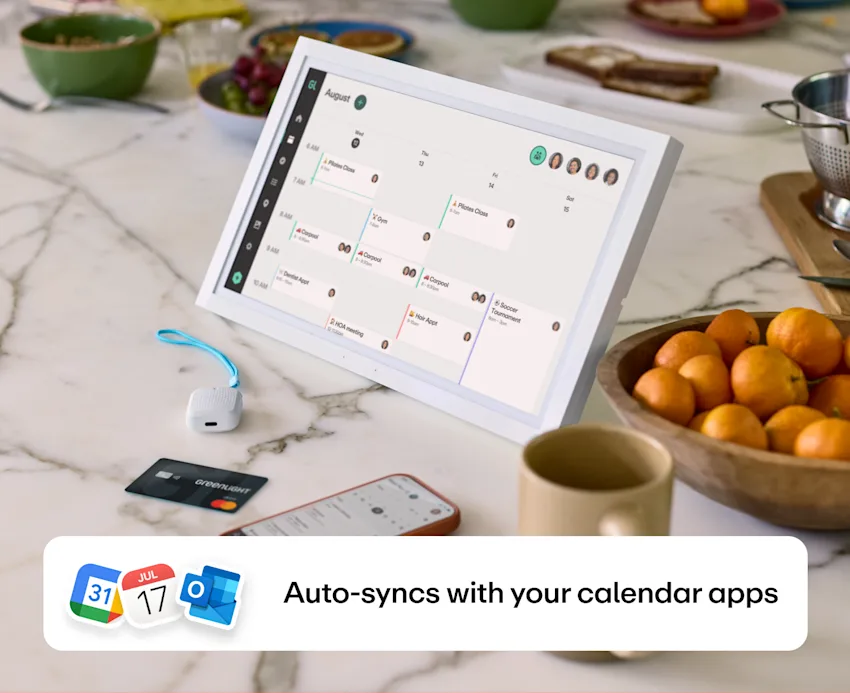
A family display earns its place when someone can answer “what happens next?” without asking the person who usually runs the schedule. Greenlight adds a second question: “where are the children?” Its Family Hub can put those answers on one screen, but the calendar, safety permissions and subscription are three separate decisions. This guide focuses on the 15.6-inch Hub and explains where the 10.1-inch model changes the choice.
Who this suits: U.S. households weighing a shared calendar with included chores and photos, and existing Greenlight customers deciding whether a shared safety view adds value.
The short answer: a useful free calendar, a paid safety view
Greenlight Family Hub makes the most sense for a U.S. household that wants shared planning and family photos without a mandatory recurring Hub fee, especially if it already uses Greenlight. The larger screen gives those jobs a permanent home; the smaller model can move between rooms. Adding the safety map changes the purchase: you are paying to put selected phone and tracker information where the household can see it. You are not buying a tracking radio inside the kitchen screen. If your existing phone arrangement already handles family whereabouts well, start with the calendar and photo features before paying for another map. For a household choosing its first display, the quality of the calendar connection and the willingness to maintain one shared system matter more than the length of the feature list.
What is actually free, and what does Plus unlock?
For a new Hub-only account, the current feature chart includes shared calendars, chores with star rewards, lists, photos, auto-tagging and email-to-calendar in Free. A free chore reward is not a cash transfer to a debit card. Plus adds the conversational assistants, timer and full safety map. Existing financial-plan customers follow a different entitlement chart: Core and Max do not inherit the location map or voice assistant merely because they already pay Greenlight. Infinity and Family Shield include a richer Hub feature set. Check the name of the plan on your own account before assuming an existing payment covers the extras.
| Household job | Free | Plus | Sources |
|---|---|---|---|
| Calendar, star chores, shared lists and photo display | Included | Included | Greenlight: included and paid features |
| Calendar auto-tagging and email-to-calendar | Included | Included | Greenlight: included and paid features |
| AI text / voice assistant and timer | Not included | Included | Greenlight: included and paid features |
| Full family safety map | Not included | Included | Greenlight: included and paid features |
| Safe Family Device locations on the Hub | Limited device-location view | Broader safety view | Greenlight: Safety map and permissions |
Checked November 2, 2026. The limited tracker view does not include a tracker or its service; financial-plan accounts have separate entitlements.
The safety map is shared; the controls stay on your phone
Greenlight’s Safety guide describes a view-only household map. It shows children and linked Safe Family Devices, last-update information, place status and eligible trip information. Parent locations are intentionally omitted. Place-alert management, sharing settings and SOS controls remain in the mobile app. No PIN is required to view the Hub’s safety information, so location visibility deserves the same thought as where you hang a family calendar: guests, carers and children may all pass the screen. Before relying on it for school pickup, check whose location appears, whether the timestamp is current, and which adult receives an arrival notification. A pin on a map is useful context, not confirmation that a child has been handed over to the right person.
Crash detection depends on a phone, not the display
Greenlight’s crash-detection instructions require the app to be enabled, location permission set to Always, a strong cellular signal, at least 20% phone battery and power-saving mode switched off. They describe sustained travel of at least 10 mph for 0.2 miles before a crash and a sudden complete stop afterward; even then, some collisions can be missed. A screen plugged in at home cannot compensate for a flat or disconnected phone. There is also a purchase-critical mismatch: the Hub sales page advertises crash detection alongside Family Hub+, but the dedicated crash article names Infinity and Family Shield. Do not buy Hub-only Plus solely for crash response without written confirmation that your account qualifies. A safe setup check verifies permissions and account access; it must never involve trying to trigger a collision or an emergency dispatch.
Sources: Greenlight: crash detection requirements · Greenlight: Family Hub models and plans
Calendar sync is better understood by direction than by logo
Greenlight documents two-way editing for Google, Outlook and iCloud. Cozi, TeamSnap and website calendars are read-only, with the source publisher responsible for changes; TeamSnap and website feeds refresh hourly. A connected calendar account is needed for ordinary events, and iCloud uses an app-specific password. These distinctions decide whether the Hub can become your family’s working calendar or just a display of schedules maintained elsewhere. For a sports household, changing a game at the source and seeing the revision arrive is more useful than simply seeing the team name during setup. The linked calendar-sync comparison explains how this differs across other displays.
An iPhone calendar subscription can disappear at the account boundary
A July owner discussion describes subscribed schedules that appear on an iPhone but do not appear through the Greenlight connection. The current setup instructions offer a practical distinction: a website calendar can be added by a webcal link, while other subscriptions may need to pass through Google or Outlook. An iPhone showing an event does not establish that the event belongs to the connected iCloud account. Before mounting the Hub, make a harmless test appointment in each writable provider, edit it from the display and check it back on the phone. For a school or team feed, check an actual source update instead. Keep your real appointments intact, and allow for the publisher’s refresh interval before diagnosing a failed connection.
Sources: Reddit: subscribed-calendar owner discussion · Greenlight: calendar connections and editing
Photo sharing: included display, different iPhone and Android workflows
Greenlight’s photo guide offers automatic selected-album sync on iPhone with Full Access permission; limited access means manual selection. Android uploads are manual, with no automatic background album sync. Deleting a phone photo supplied through album sync also removes it from the Hub. That matters more for a family gift than an unlimited-storage headline: one relative may expect photographs to keep arriving without opening the app, while another must deliberately upload them. Slide timing, image quality and the usefulness of the crop should be judged with your own portrait, landscape and group photographs. A large calendar screen is not automatically a better photo frame. Greenlight separately describes an approximately 10 GB local photo cache, so cloud storage and an offline copy of the whole family archive are different things.
Sources: Greenlight: photo sharing and album sync · Greenlight: local cache and account data
Choose the power arrangement before the screen size
The 15.6-inch Hub is plug-in only. The 10.1-inch version has a battery; Greenlight advertises roughly four to six hours, a manufacturer estimate rather than a measured result here. Both need Wi-Fi for connected work. Offline, previously available calendars, photos, lists and chores can be viewed, while calendar editing and fresh updates need a connection. Dual-band 2.4/5 GHz and mesh support make it unnecessary to assume a separate legacy router, but captive-portal networks are unsuitable. Greenlight ships within the U.S. and requires a U.S.-based account; it does not offer normal overseas connection troubleshooting. Plan the outlet and cable route where the family will actually read the display, rather than buying the larger model as a portable tablet.
Sources: Greenlight: sizes, power and offline use · Greenlight: Family Hub models and plans
AI helps with input, but a household still owns the decision
Email import and calendar tagging are separate from asking a voice assistant to rearrange the day. The current feature chart includes the former in Free; the conversational text and voice tools require the appropriate plan. Greenlight’s assistant responds when activated rather than proactively speaking up, and its controls let you change wake-word behavior. In practical use, inspect the destination calendar, person, date and recurrence after importing a school email. A correctly extracted time can still be assigned to the wrong child. For chores, decide who creates tasks, who approves completion and whether the reward is a star or money; importing a schedule does not import another app’s chore system.
Sources: Greenlight: AI assistant controls · Greenlight: account and first setup
Three-year cost: separate the screen, the plan and an existing account
The standard model prices shown in Greenlight’s store are $299 for 15.6 inches and $199 for 10.1 inches. The app listing gives Hub+ at $9.99 monthly or $99 annually. The examples below use the larger model’s standard hardware price, three complete paid years and unchanged rates; they exclude tax, shipping, discounts, trackers and financial-account charges. An existing Infinity or Family Shield customer should assess the cost of keeping that account, rather than add a second Hub subscription by default. The old October anniversary promotion is not a current purchase price.
| Choice | Hardware | Three years of Hub service | Total | Sources |
|---|---|---|---|---|
| Family Hub Free | $299 | $0 | $299 | Greenlight: Family Hub models and plansGreenlight: included and paid features |
| Hub+ annual billing | $299 | 3 × $99 = $297 | $596 | Greenlight: Family Hub models and plansGreenlight app: subscription listing |
| Hub+ monthly billing | $299 | 36 × $9.99 = $359.64 | $658.64 | Greenlight: Family Hub models and plansGreenlight app: subscription listing |
USD, before tax and shipping, using November 2, 2026 listed rates held constant. No trial or promotional discount is assumed; a bundled annual subscription may be charged at activation.
Sources: Greenlight: Family Hub models and plans · Greenlight app: subscription listing
Downgrading needs a little more care than turning off renewal
Greenlight’s billing instructions direct Hub-only subscribers to Settings → Account → Change in the app, then Family Hub Free; a Shopify annual bundle may require the purchase-confirmation route. Paid access lasts until the current period ends. There is a specific inconsistency worth knowing before you cancel: the billing page says profiles, calendar connections and photos stay on the device, while the data page says cancellation triggers a local factory reset with cloud data retained. Those are different device experiences. Keep your original photographs, retain account access and ask support which downgrade behavior applies to your purchase channel. Closing the whole account is also different from downgrading the Hub plan.
Sources: Greenlight: billing and cancellation · Greenlight: local cache and account data
Greenlight, Skylight or Cozyla: choose the work you want the screen to do
Choose Greenlight when included chores and photos matter and its account-based safety view would be useful to the people at home. For a calendar-first household with no reason to move its safety information onto a shared screen, Skylight remains a relevant alternative: compare the actual free calendar path and the Plus extras you would use, not just the subscription labels. Cozyla deserves a closer look when Android apps and a broader household display matter more than a dedicated Greenlight account workflow. Keeping an existing tracking app and buying a calendar display can also be a sensible split. Greenlight’s strongest case is bringing jobs your family already uses together; collecting another screen and another account is not, by itself, less work.
Sources
Before ordering
Products to compare
Open the linked profile for exact-model evidence. On a small screen, scroll the comparison sideways; with a keyboard, focus the table and use the arrow keys.
| Product | Role | Best for | Source status |
|---|---|---|---|
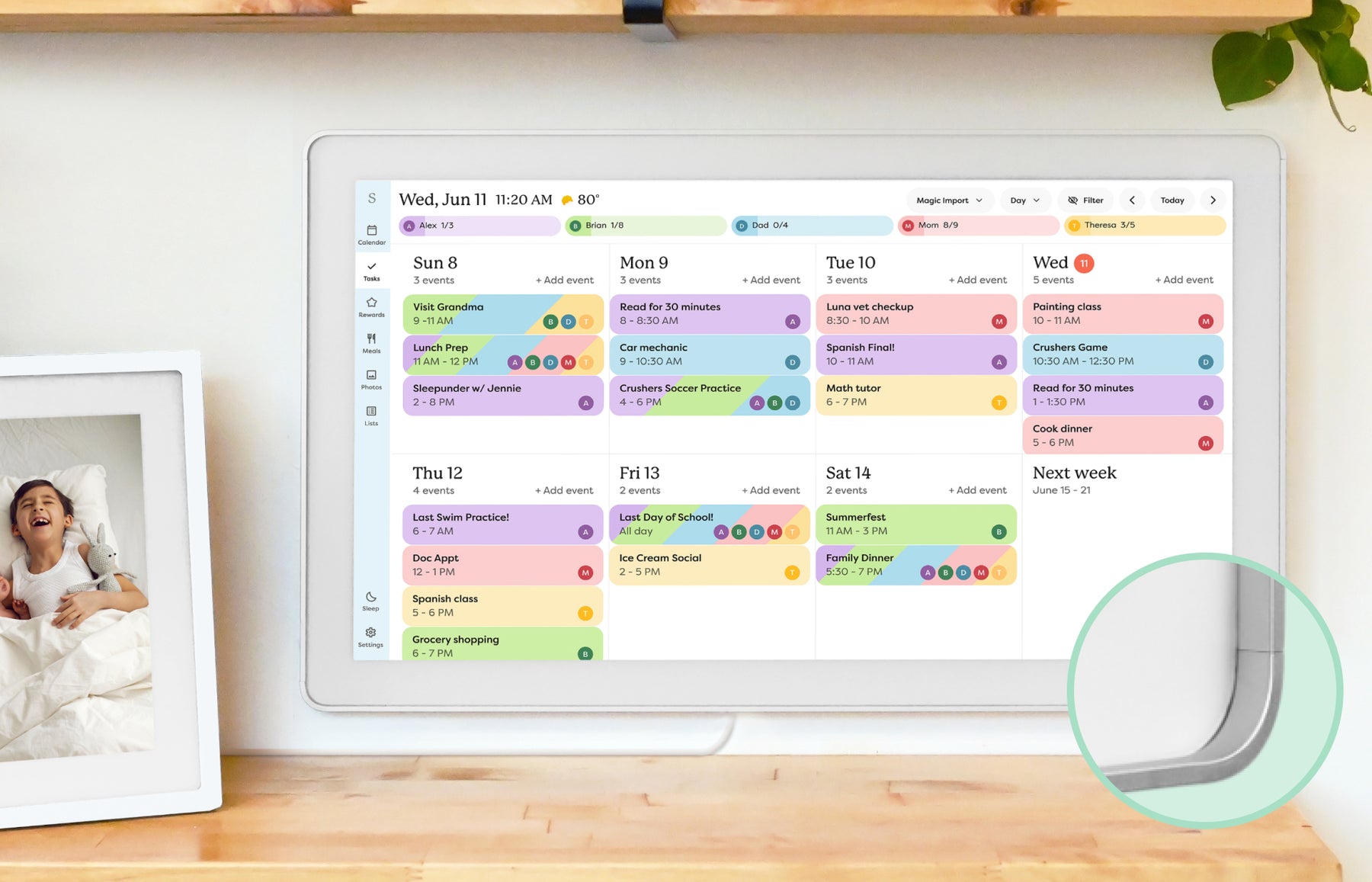 | Smart calendar frame | Families who want a polished shared calendar with broad mainstream support and do not want to run a DIY dashboard. | Official sources · checked October 20, 2026 |
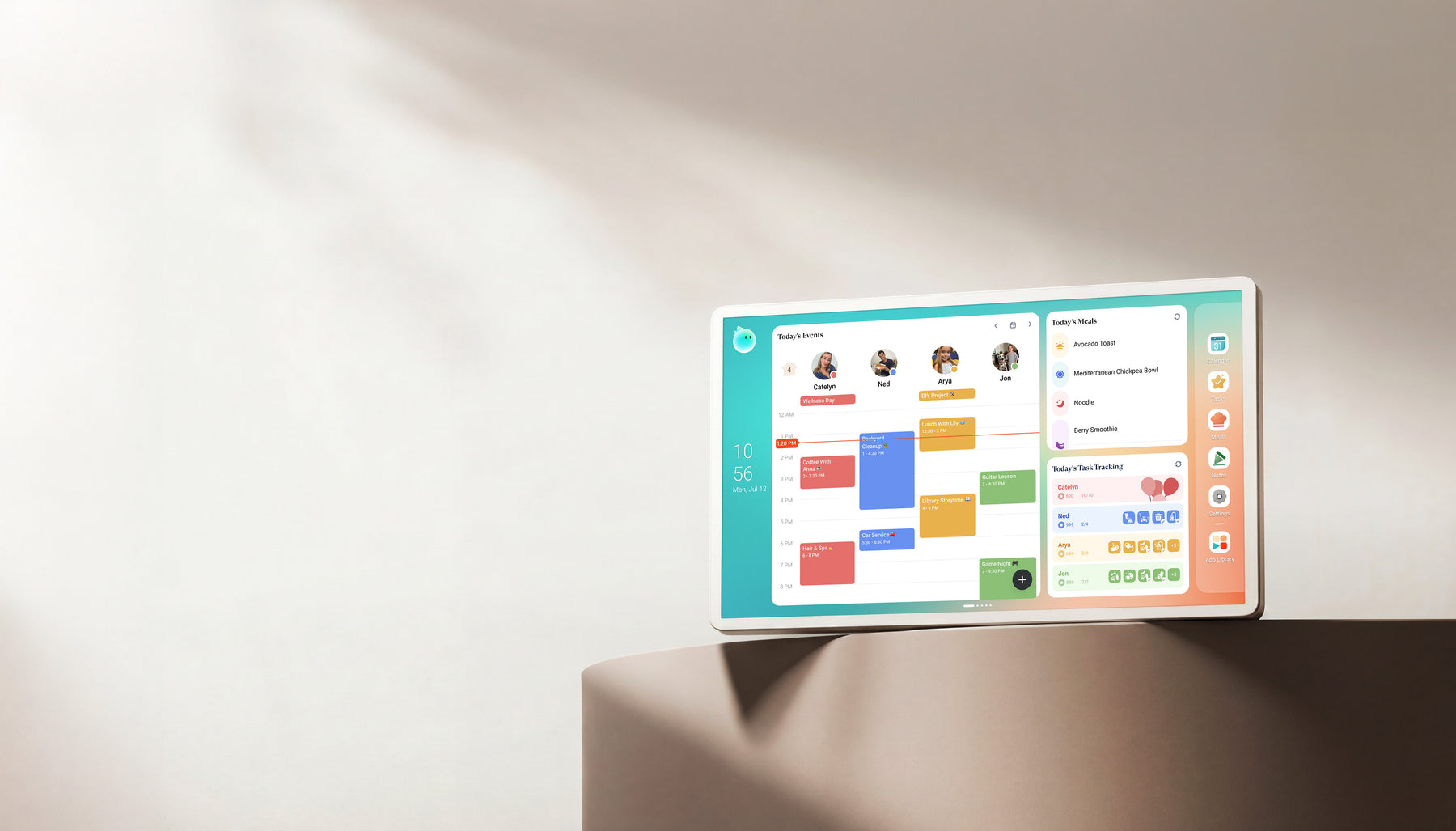 | Family display | Homes comparing Skylight alternatives with calendar, photo, and family-display needs. | Official + retailer sources · checked August 29, 2026 |
Common questions
Does Greenlight Family Hub need a subscription?
Core Hub calendars, star-reward chores, lists and photo display have a free plan. Full safety-map and conversational-assistant access depend on a paid plan or eligible existing financial plan.
Can the 15.6-inch Hub run without a power cord?
No. It is plug-in only. The 10.1-inch model has a battery; its advertised runtime is not a measured result in this guide.
Can everyone see parent locations on the Hub?
Greenlight says parent locations are deliberately excluded from the shared Hub map. Child and linked-device safety information is viewable without a PIN.
Is Greenlight better than Skylight?
Greenlight is worth comparing for included photos and star chores, or a useful shared safety view. If your priority is calendar visibility, compare calendar behavior and the extras you would actually pay for.
Related buying guidance
Compare cost, included features and your shortlist
Use the detailed comparison that matches your next buying question.
Continue your research
- Smart frame subscription costsCompare paid features with the household work they replace.
- Free versus paid feature boundariesCheck model-specific plans and included tools.
- No-subscription calendar shortlistCompare existing picks without assuming every feature is free.