
Manufacturer guidance
Screen coatings differ. A method allowed for one display may be discouraged for another, so the product manual outranks generic cleaner instructions.
Care guide
Touchscreens collect fingerprints quickly, but the wrong liquid, cloth, or pressure can damage coatings and push moisture toward the bezel.
Quick answer
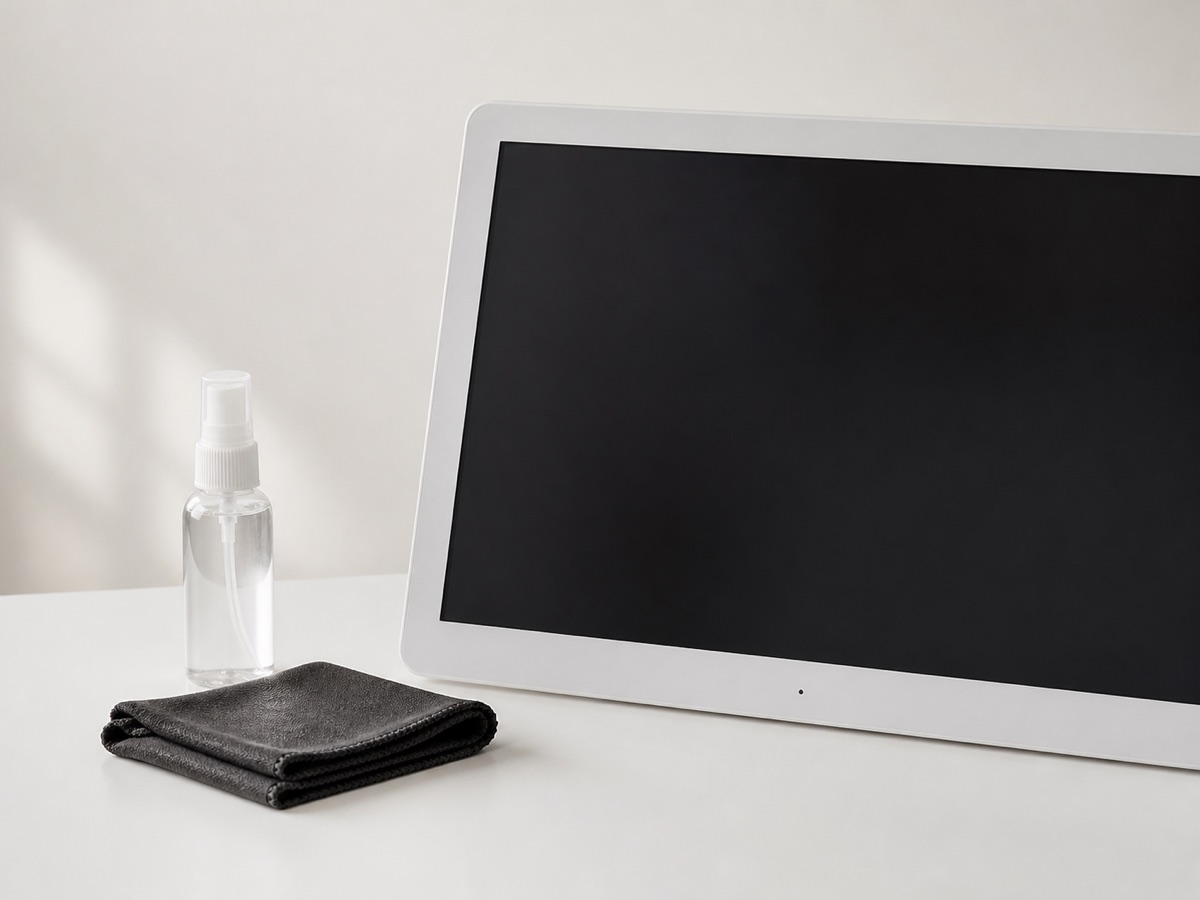
Check the device manual first. Power the display off, unplug it when the maker instructs, start with a clean soft microfiber cloth, use minimal pressure, and never spray liquid directly onto the screen or bezel.
Decision framework
Screen coatings differ. A method allowed for one display may be discouraged for another, so the product manual outranks generic cleaner instructions.
Remove loose dust with a clean, dry microfiber cloth before considering any approved moisture or screen-specific solution.
A touchscreen is not a countertop. Pressing hard can damage the panel or drag abrasive dust across its surface.
Apply any permitted liquid to the cloth, not the display, and keep moisture away from openings, ports, edges, and buttons.
Installation sequence
The order is intentional: the accessory should follow the device, room, and power plan.
Confirm the display maker cleaning method and prohibited chemicals.
Turn off and unplug the device when instructed, then allow a warm screen to cool.
Use a clean, dry, lint-free microfiber cloth with light pressure.
Only use water or a screen solution when the device maker allows it, applied sparingly to the cloth.
Wait until the screen and bezel are completely dry before restoring power.
Tracked products
These are candidates, not universal recommendations. Open the fit profile where available and verify the live listing before checkout.
Catalog candidate EVEO
General screen-care option for frequently touched calendar and photo displays.
ASIN B082XJJ8DS · source checked 2026-08-10
Stop signs
Related research
Sources
Common questions
Not unless the device maker explicitly permits it. Household glass cleaners can contain chemicals that damage display coatings.
No. Major display makers advise against direct spray because liquid can enter around the bezel and openings.
It is the safest starting point for dust and light fingerprints. Persistent marks should be handled only with the method allowed by the display manufacturer.
Powering down makes marks easier to see and reduces electrical risk. Follow the device maker instructions about unplugging and cooling time.